Finding Second Moment of Area of an I-Section
In this article, we will estimate the second moment of area of an I-section.
The original problem, sourced from an online lecture [video link here, please note that you will be leaving our website. We are not responsible for the content or safety of external sites.] on finding the second moment of area or also known as the area moment of inertia by Professor Jeff Hanson, is modelled using GeoProp to compare the second moment of area of an I-section.
Problem Definitions
The I-section is illustrated in the sketch below.
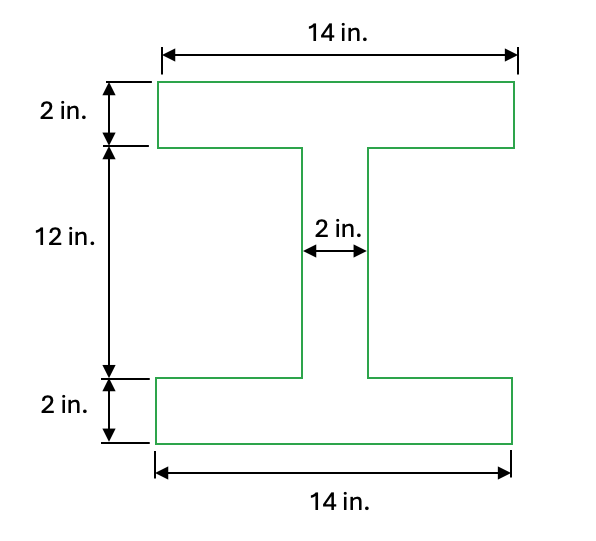
Sketch
I-Section
Numerical Procedure and Results
(Detailed modelling steps are provided at the end of this article.)
Following the analysis using GeoProp, the second moment of area is evaluated on the Results Page of the app:
Second Moment of Area = 3,051 in.^4 (rounded to round number)
The analytical solution from the online lecture gives a second moment of area of 3,051 in.^4, which aligns with the second moment of area estimated from GeoProp.
Note that the Results Page also contains other section properties typically used for design purposes.
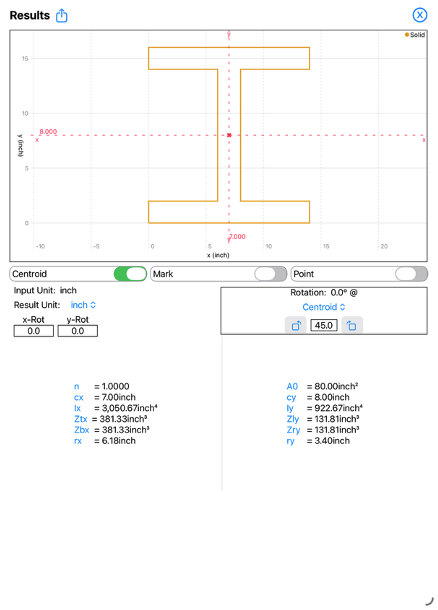
GeoProp Results Page
Section Properties
The .txt input file for the GeoProp model is available for download here.
If you have any queries or feedback regarding this article, please contact us.
If you wish to download GeoProp, click here.
Step-by-Step Modelling Procedure
Open the GeoProp app and tap on the Section Page. Tap <Solid> to ensure that the Solid Element is selected. We will treat the I-section as the Solid Element as this is the base building element for the app.
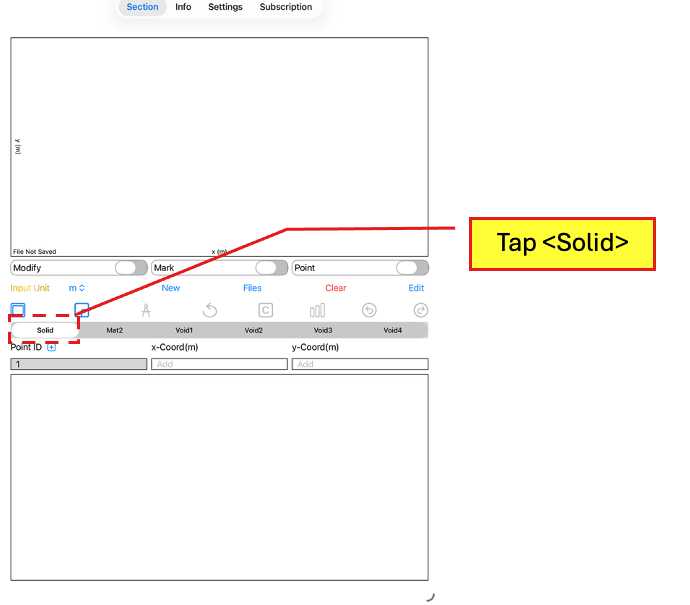
Section Page
Tap <Solid>
[Tips & Tricks: To save time when creating a section, utilise the built-in Section and Shape Templates and adjust the creation to suit your section.]
Next tap on the Section Template button to access the Section Template Page.
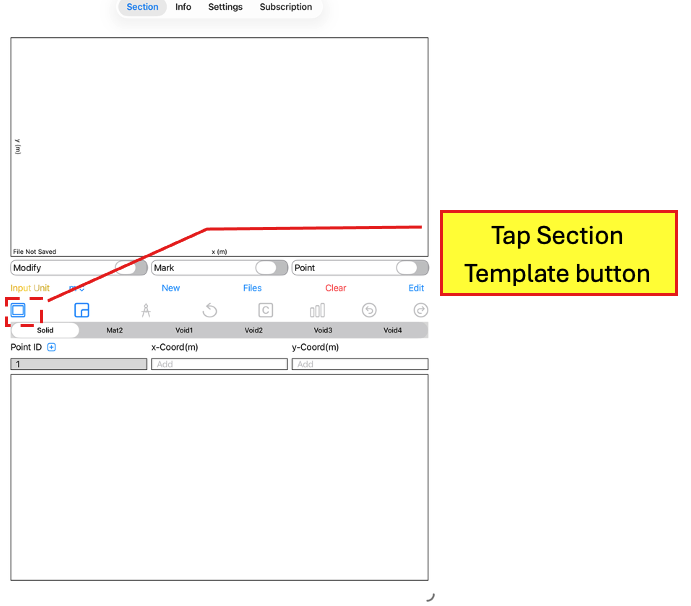
Section Page
Tap the Section Template button
In the Section Template Page, tap the Universal Section button to bring up the template for an I-section.
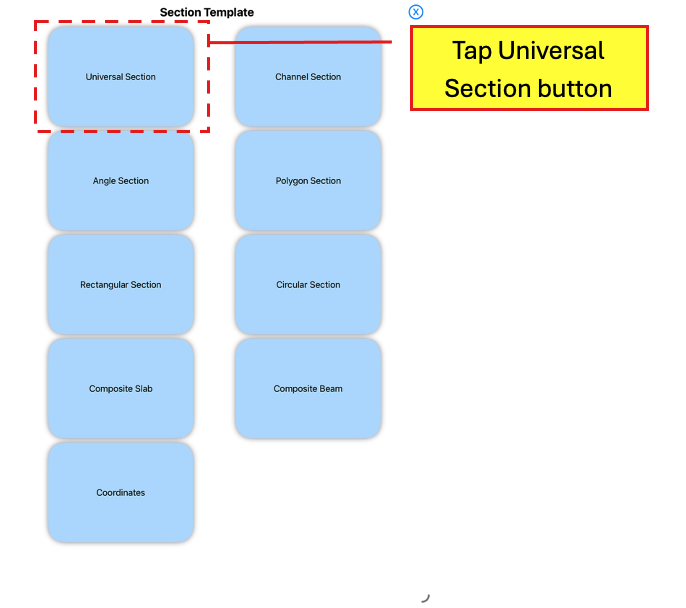
Section Template
Tap the Universal Section button
Under Input Unit, select inch from the drop down list to change the unit. Then enter the following dimensions:
bf = 14 in inch
df = 16 in inch
tf = 2 in inch
tw = 2 in inch
Leave r0 empty
Ensure that Element is set to Solid.
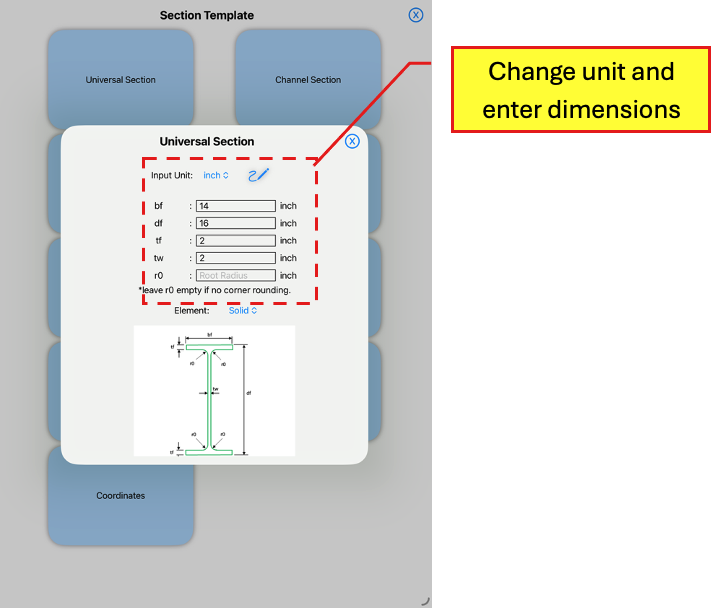
Universal Section
Change unit and enter your dimensions
Tap on the Scribble button to create the I-section.
Back in the Section Page, tap on the Results Page button to access the Results Page to view the results.
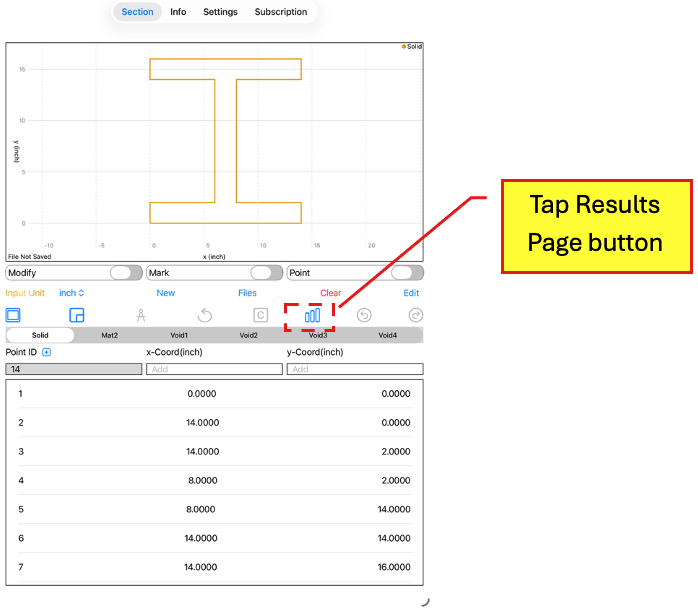
Section Page
Tap the Results Page button
The Results Page summarises the section properties for the section.
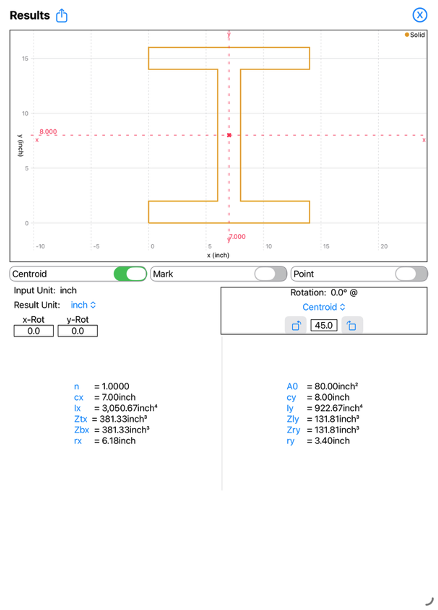
Results Page
View the Section Properties